Quick answer: If your Shopify store isn't showing on Google, it's almost always one of a few fixable reasons — the store is still password-protected, Google hasn't crawled it yet (a new store takes 2–4 weeks), a "noindex" setting is blocking pages, your content is too thin or copied, or you simply haven't told Google your store exists. This guide walks you through finding the exact reason and fixing it — step by step, in plain English, no jargon.
There's an important difference to understand first, because it changes what you fix:
- Not indexed = your store isn't in Google's database at all (an indexing problem).
- Not ranking = you're in Google, but buried on page 5+ (a ranking problem).
Let's find out which one you have.
First: is your store even on Google? (30-second check)
Go to Google and search this (replace with your domain):
site:yourstore.com
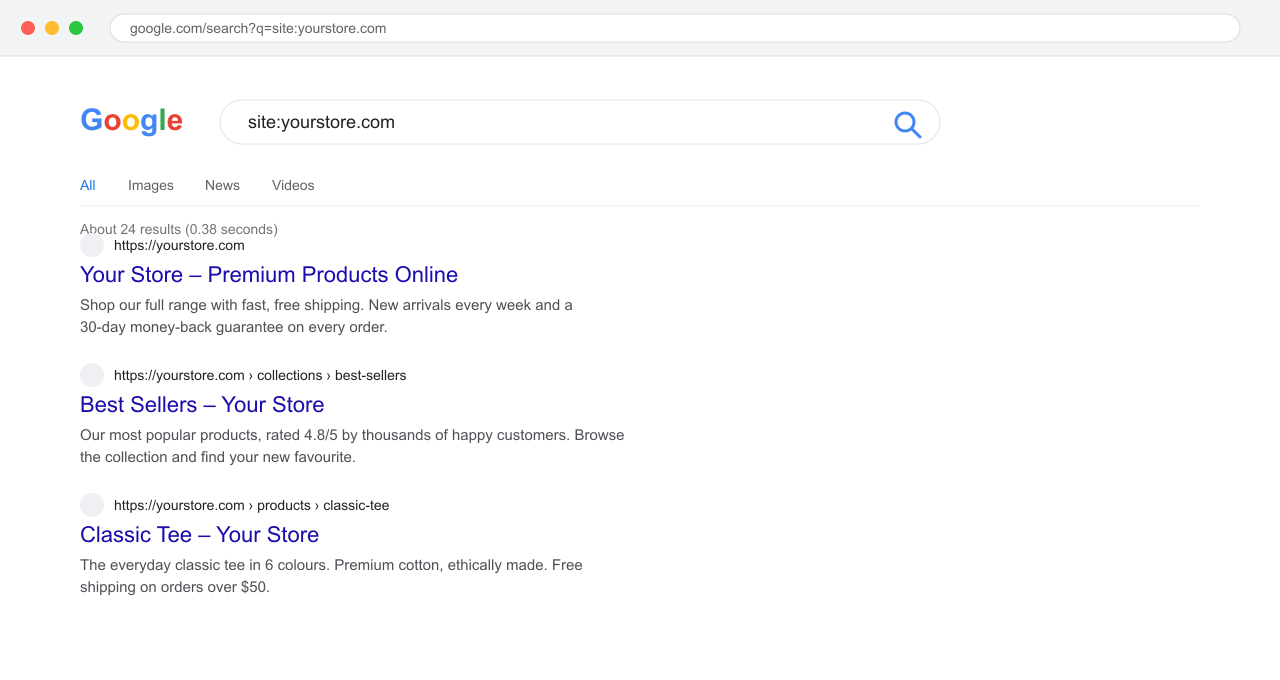
site:yourstore.com search shows every page Google has indexed for your store — here, about 24 pages.
- Pages show up → you're indexed. Your issue is ranking (jump to Step 5 onward).
- Nothing / only your homepage shows → you're not indexed. Start at Step 1.
The 8 most common reasons a Shopify store doesn't rank
Most stores we audit are stuck on one of these:
- 🔒 Store is still password-protected — the #1 reason for new stores. A locked store is invisible to Google.
- 🆕 Your store is too new — Google usually takes 2–4 weeks (sometimes longer) to crawl and index a brand-new site.
- 🚫 A "noindex" tag is blocking pages — a theme or app is quietly telling Google "don't index this."
- 🗺️ Sitemap not submitted to Google Search Console — Google doesn't know which pages you have.
- 📝 Thin or duplicate content — using the manufacturer's product description means dozens of stores have the exact same text. Google sees no reason to index another copy.
- 🐌 Slow store / poor Core Web Vitals — slow, janky pages rank lower (and lose sales).
- 🔑 Not targeting what shoppers search — your titles and descriptions don't contain the words people actually type.
- 🤖 (New for 2026) Not ready for AI search — missing structured data means you're invisible in Google's AI Overviews and in ChatGPT/Perplexity answers. In one analysis, only ~12% of Shopify stores had meaningful schema beyond Shopify's defaults.
Now the fixes.
Step-by-step: how to find and fix it
Step 1 — Set up Google Search Console (your free SEO dashboard)
Google Search Console (GSC) is a free tool from Google that shows whether your store is indexed, which keywords you appear for, and what's broken. If you haven't already:
- Go to search.google.com/search-console
- Add your store (use the URL prefix option with your full
https://domain) - Verify ownership — the easiest way on Shopify is the HTML tag method (paste the tag into your theme, or use Shopify's built-in Google channel)
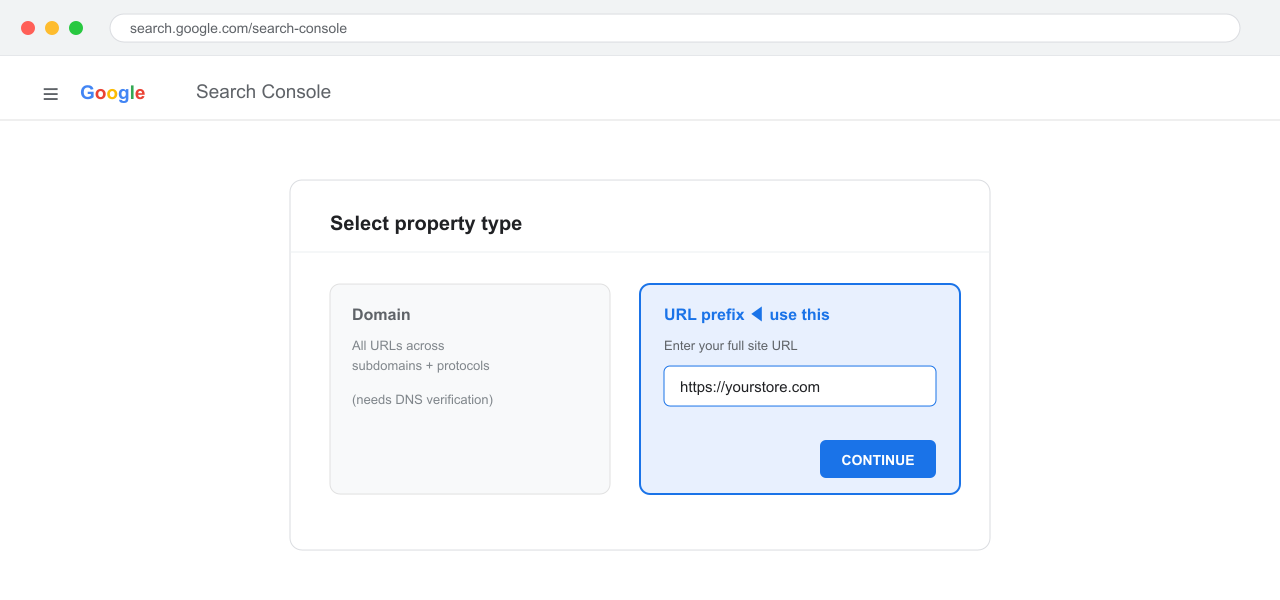
https:// store URL.
This one tool answers almost every "why am I not ranking" question.
Step 2 — Check if your pages are indexed (URL Inspection)
In Search Console, paste any page URL into the search bar at the top and press Enter.
- "URL is on Google" → indexed ✅
- "URL is not on Google" → not indexed yet ❌ (click Request Indexing)
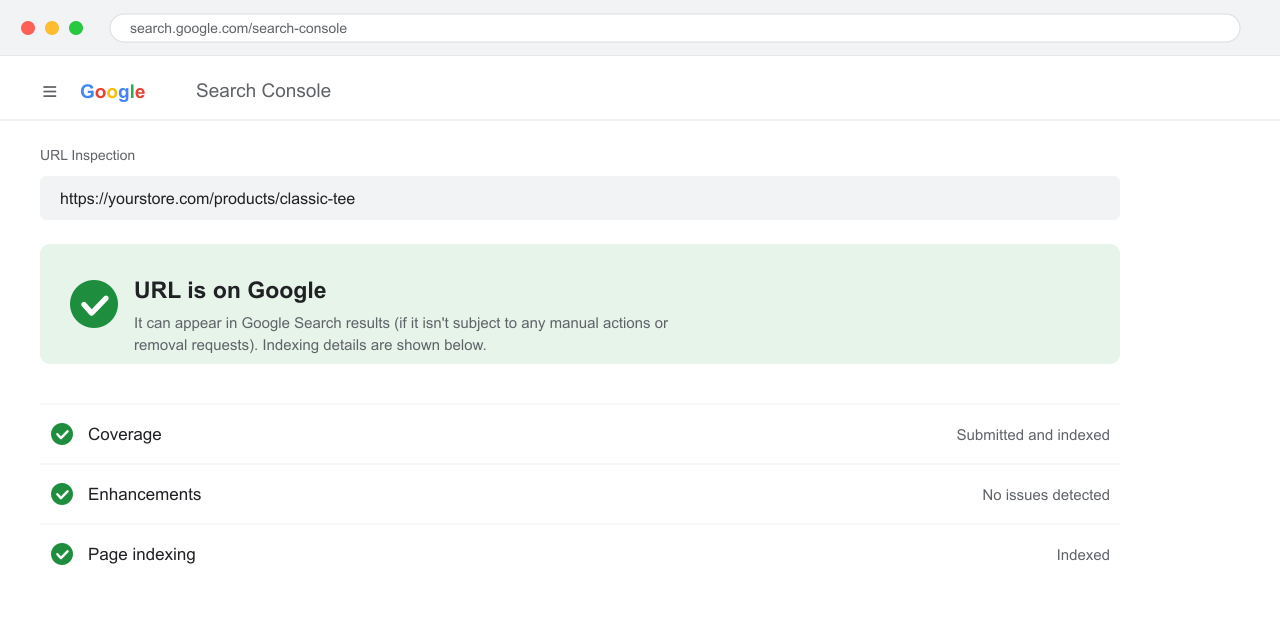
Do this for your homepage and 2–3 important product/collection pages.
Step 3 — Turn OFF password protection
This is the most common new-store mistake — while the password is ON, Google cannot see or index your store at all. In your Shopify admin:
- Go to Online Store → Preferences
- Find the Store access card → Password protection
- Turn the "Restrict access to visitors with the password" toggle OFF, then click Save
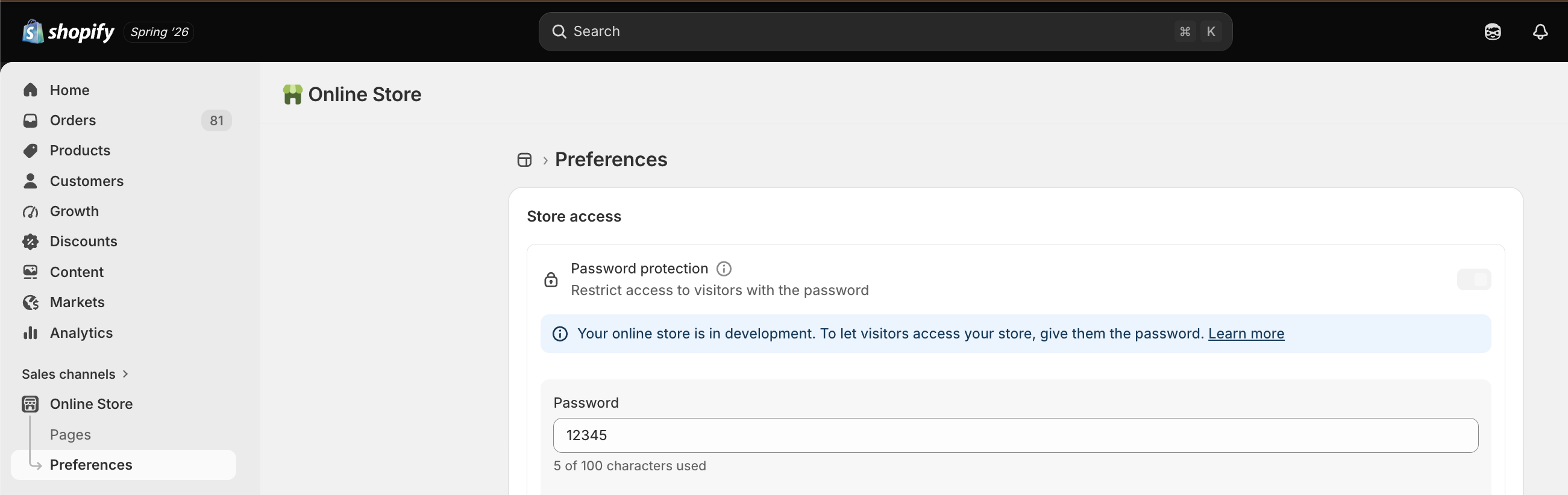
Note: On a free Shopify development store, this setting stays locked until you choose a paid plan — so a brand-new dev store is always hidden from Google until you go live.
While you're here, also make sure "Let search engines show your store in search results" is enabled.
Step 4 — Submit your sitemap to Google
Your sitemap is a map of all your pages. Shopify creates one automatically at:
yourstore.com/sitemap.xml
In Search Console: Indexing → Sitemaps → enter sitemap.xml → Submit.
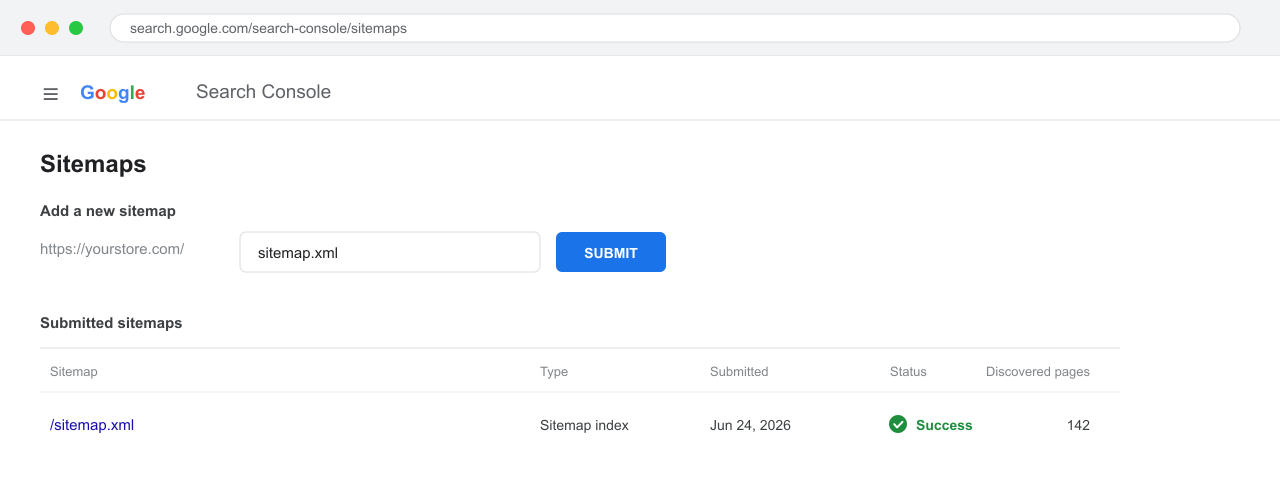
sitemap.xml, the status should read Success with your pages discovered.
This tells Google exactly which pages to crawl — a must-do for every store.
Step 5 — Find and fix coverage issues ("Crawled — currently not indexed")
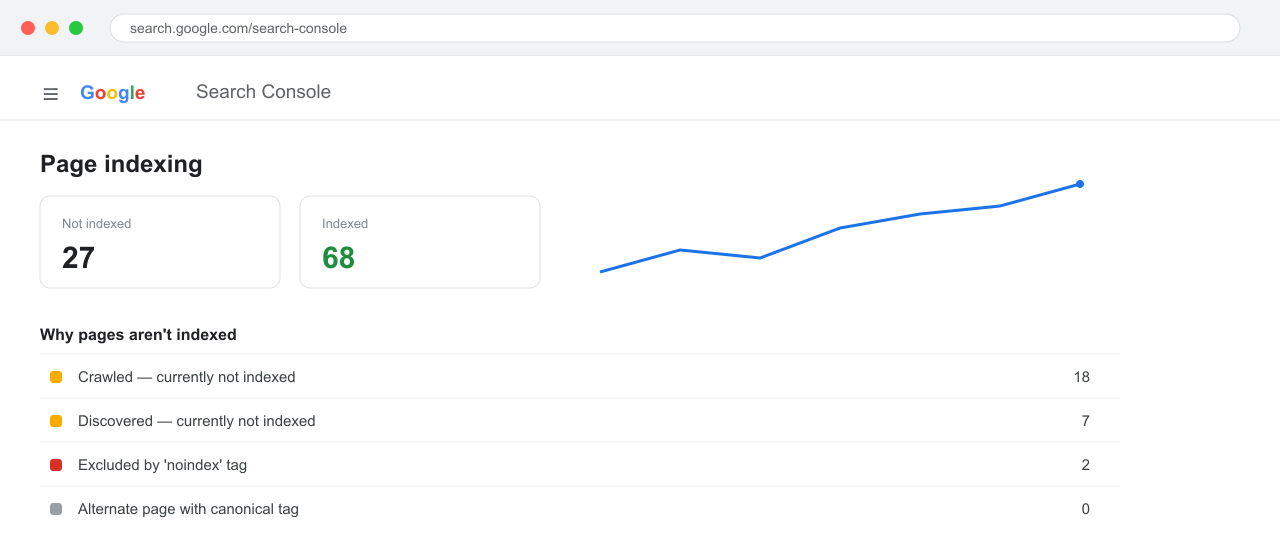
In Search Console: Indexing → Pages. You'll see how many pages are Indexed vs Not indexed, with reasons.
The most common one to watch is "Crawled — currently not indexed." It usually means Google saw the page but didn't think it was worth indexing — almost always a content quality problem (Step 6).
Step 6 — Fix thin and duplicate content (the real ranking killer)
This is where most stores quietly fail. Google won't index a product page that has two sentences of copied text.
Do this:
- Products: write 200–500 words of unique description — features, benefits, who it's for, how to use it, sizing/care. Never paste the manufacturer's text.
- Collections: add 200–400 words of intro content explaining what's in the collection and who it's for (most stores leave this blank).
- Homepage: make sure it clearly says what you sell, to whom, and where — in real text, not just images.
Example — before vs after a product description:
❌ Before: "Premium cotton t-shirt. 100% cotton. Machine washable."
✅ After: "This midweight 100% organic cotton t-shirt is built for everyday wear — pre-shrunk, breathable, and soft enough to sleep in. The relaxed unisex fit runs true to size (see the size chart below). Machine-wash cold, hang to dry, and it holds its shape wash after wash. Ideal for layering in spring or wearing solo in summer."
The second one gives Google (and shoppers) a real reason to choose you.
Step 7 — Add keywords to your titles and meta descriptions
Shoppers search in phrases like "organic cotton t-shirt for men." Put those phrases where Google reads them. In Shopify, scroll to the "Search engine listing" section on any product/collection/page and edit:
- Page title — include the main keyword + your brand
- Meta description — one clear sentence with the keyword + a reason to click
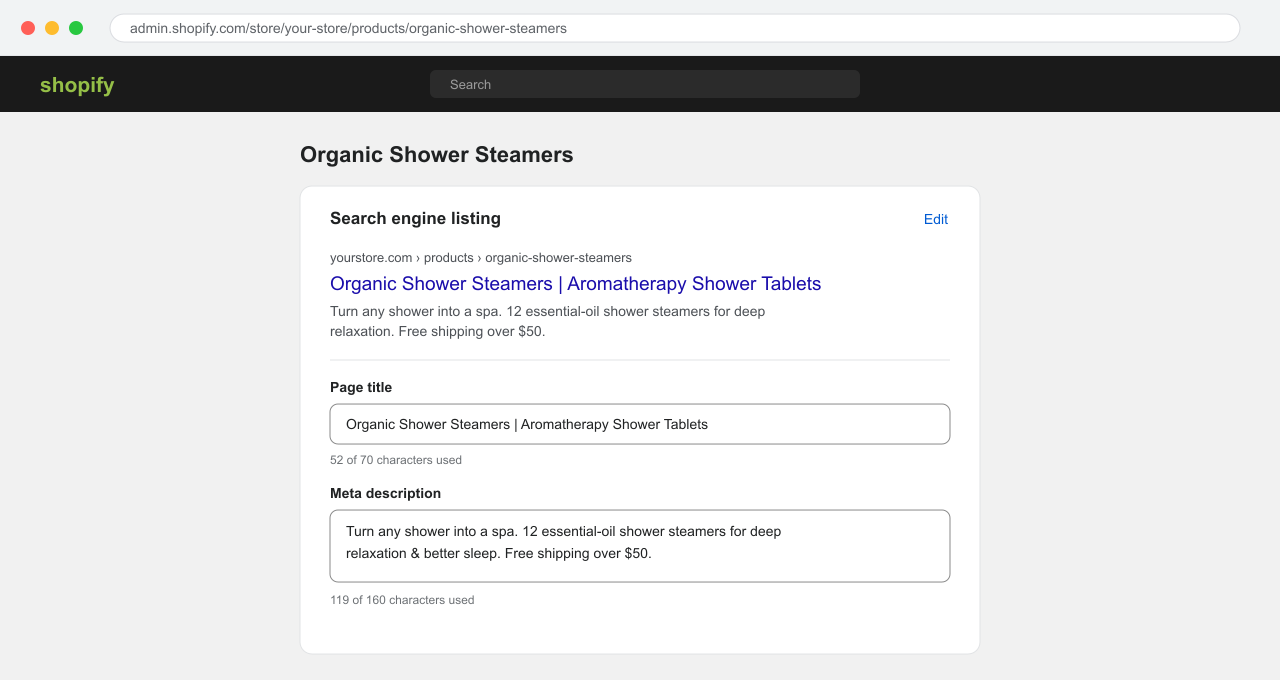
Example: Title → "Organic Cotton T-Shirts for Men | Soft, Pre-Shrunk | YourBrand"
Step 8 — Speed up your store (Core Web Vitals)
Google ranks fast stores higher, and slow stores lose sales. Test your store free at PageSpeed Insights (pagespeed.web.dev) — look at the mobile score.
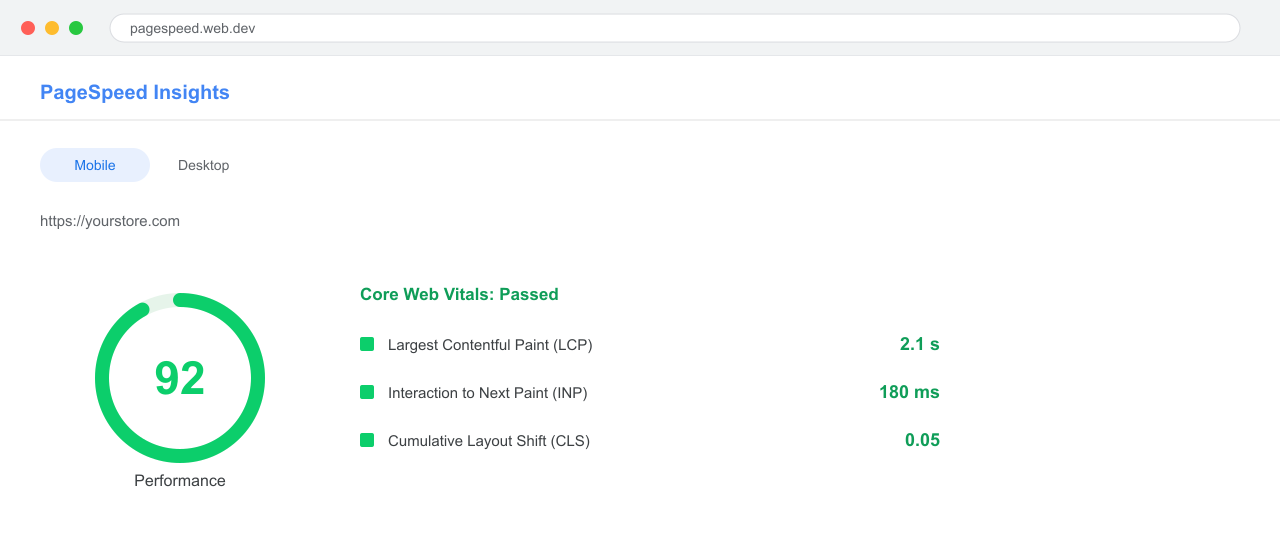
Common quick wins: compress/convert images to WebP, remove apps you don't use, and pick a lightweight theme. If your scores are poor, our Shopify speed optimization service fixes Core Web Vitals with a measured before/after.
Step 9 — (2026) Get ready for AI search and AI Overviews
Search isn't just blue links anymore. Google now shows AI Overviews, and shoppers ask ChatGPT, Copilot, and Perplexity for product recommendations. To show up there:
- Add proper structured data (schema) — Product, FAQ, Organization. Most themes only output the bare minimum.
- Write clear, front-loaded answers (a one-line answer at the top of a page, then detail) — that's the format AI tools quote.
- Add an
llms.txtfile so AI crawlers can read your key content.
We go deep on this in our guides on AEO for Shopify and getting your products into ChatGPT.
Step 10 — Build authority, then be patient
Even with everything above perfect, ranking takes trust + time. Two levers:
- Content: publish helpful articles (like this one) that answer what your shoppers ask.
- Backlinks/mentions: get other real sites to link to or mention you (directories, partners, press). This is the slow part — but it's what separates page-1 stores from the rest.
How long until you actually rank?
Honest timeline:
- Getting indexed: a few days to ~4 weeks for a new store (faster if you submit the sitemap + request indexing).
- Ranking for easy/long-tail keywords: a few weeks to ~2 months.
- Ranking for competitive keywords: several months, and it needs ongoing content + backlinks.
Anyone promising "page 1 in a week" is selling you something. Real SEO compounds over months.
When to get help
If you've worked through this checklist and your store still isn't showing up — or you'd rather not dig through Search Console yourself — we can help. Xpertshire offers a free Shopify SEO audit: send us your store URL and we'll tell you exactly what's blocking your rankings and how to fix it. Learn more on our hire a Shopify expert page.
Sources
- Shopify — Why is my website not showing up on Google? (2026)
- Shopify Help Center — SEO FAQs
- StoreSEO — analysis of 100+ Shopify stores: why they fail to rank
- Google Search Console
- Google PageSpeed Insights
Related reads:
-
What a Shopify expert costs in 2026 — sourced rates, before you brief anyone on SEO work
Xpertshire is a Shopify development studio — we fix indexing and technical SEO, tune Core Web Vitals, and build AI-discovery-ready stores. You can hire a Shopify expert for a free SEO audit to start, or explore our speed optimization service.